

Guide
How to record Spatial Audio on iPhone
Spatial Audio captures the sound all around you, not just in front of the microphone. Here are three ways to record it on iPhone, and how to get a clean, immersive result.
Updated
In short
- You need an iPhone that records Spatial Audio: iPhone 16 or later, including iPhone 16e, iPhone 17e, and iPhone Air.
- Video in the Camera app, Voice Memos, and Aunori can all capture Spatial Audio on those models.
- Hold still, shield the microphones from wind, and let the place speak for a little while.
What Spatial Audio recording captures
A regular stereo recording keeps left and right. Spatial Audio keeps the direction of sound around the iPhone — in front, behind, and to the sides — using its microphone array. When you play it back with compatible headphones, the place opens up around you instead of sitting between your ears.
1. Record video with Spatial Audio in the Camera app
On supported iPhones, the Camera app can record the sound of a video in Spatial Audio. You can review the sound recording options in Settings › Camera › Record Sound. Video is the right choice when movement matters, but it produces large files and is easy to lose among thousands of clips in your photo library.
2. Record Spatial Audio in Voice Memos
Voice Memos supports Spatial Audio recording on the same iPhone models. It is excellent for lectures, rehearsals, and ideas. Recordings are organized by name and date, so a memo is easy to make but harder to connect to a place or a picture years later.
3. Keep a photo and its Spatial Audio together with Aunori
Aunori is made for moments you want to return to. Every Moment starts with one cover photo, then keeps the sound around it.
- Take the cover photo. Open Capture — or say “Capture a Moment” to Siri, or use the shortcut on the Action button — and take one photo.
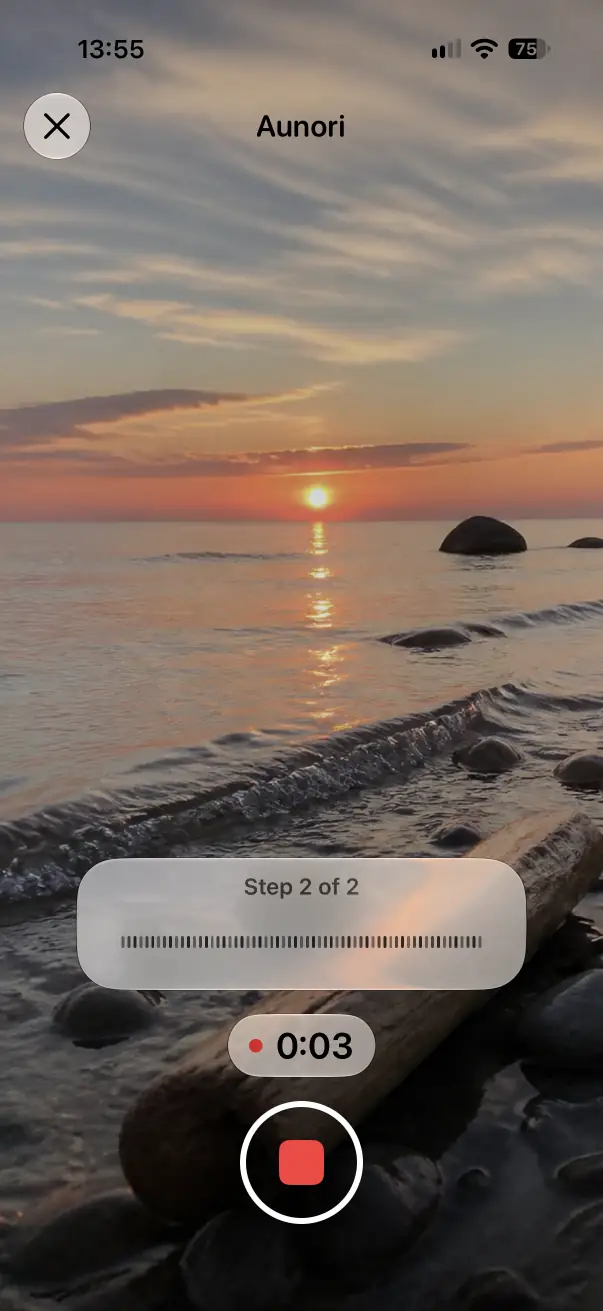
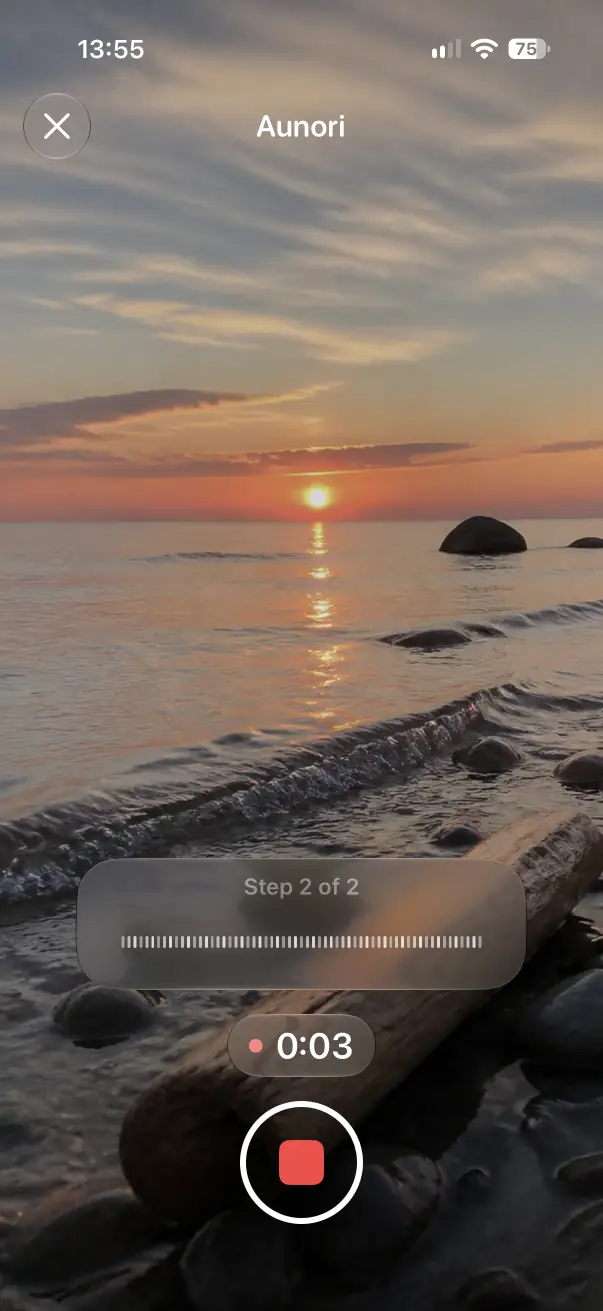
- Record the place. Aunori records the sound around you with a live waveform. On Spatial Audio iPhones, it saves a 360° recording plus a stereo fallback.
- Review and save. Listen, rename the Moment, add an optional memory note or place, and check the sound tags Aunori detected on your iPhone.
Later, you find the Moment again in your library, on the calendar, on the map, or when an Echo brings it back.
Tips for a clean recording
- Hold still. Hand movement and fabric rustle are louder to the microphones than you think.
- Mind the wind. Turn your back to it or shelter the iPhone with your body; strong wind overwhelms any small microphone.
- Do not cover the microphones. Hold the iPhone by its edges, especially near the bottom and the camera bump.
- Let it breathe. A few seconds of silence before the interesting part make the recording feel like a place, not a clip.
- Stay quiet yourself. Voices close to the iPhone dominate a Spatial Audio recording.
- Respect people around you. Only record conversations and people when you are allowed to.
How to listen back
Use headphones with Spatial Audio support for the most immersive playback. In Aunori, Relive plays the original recording; with Aunori Pro, Relive Studio can focus compatible recordings on People or World, and Stay keeps a Moment looping in the background.
Questions
Can I record Spatial Audio without video?
Yes. Voice Memos records audio only, and Aunori records sound together with one still cover photo instead of a video.
Can I turn an existing Spatial Audio video into a Moment?
Yes. Aunori can import a video from Photos or Files, keep one still frame as the cover, and preserve the original audio, including Spatial Audio.
Does Spatial Audio recording work on iPhone 15?
No. Spatial Audio recording requires iPhone 16 or later. On older iPhones running iOS 26, Aunori records stereo.